Making Your PowerPoint Ten-Minute Talk Video
Published: 20th August 2026
In this guide you’ll find a how-to guide on making your own Ten Minute Talk video for BALH.
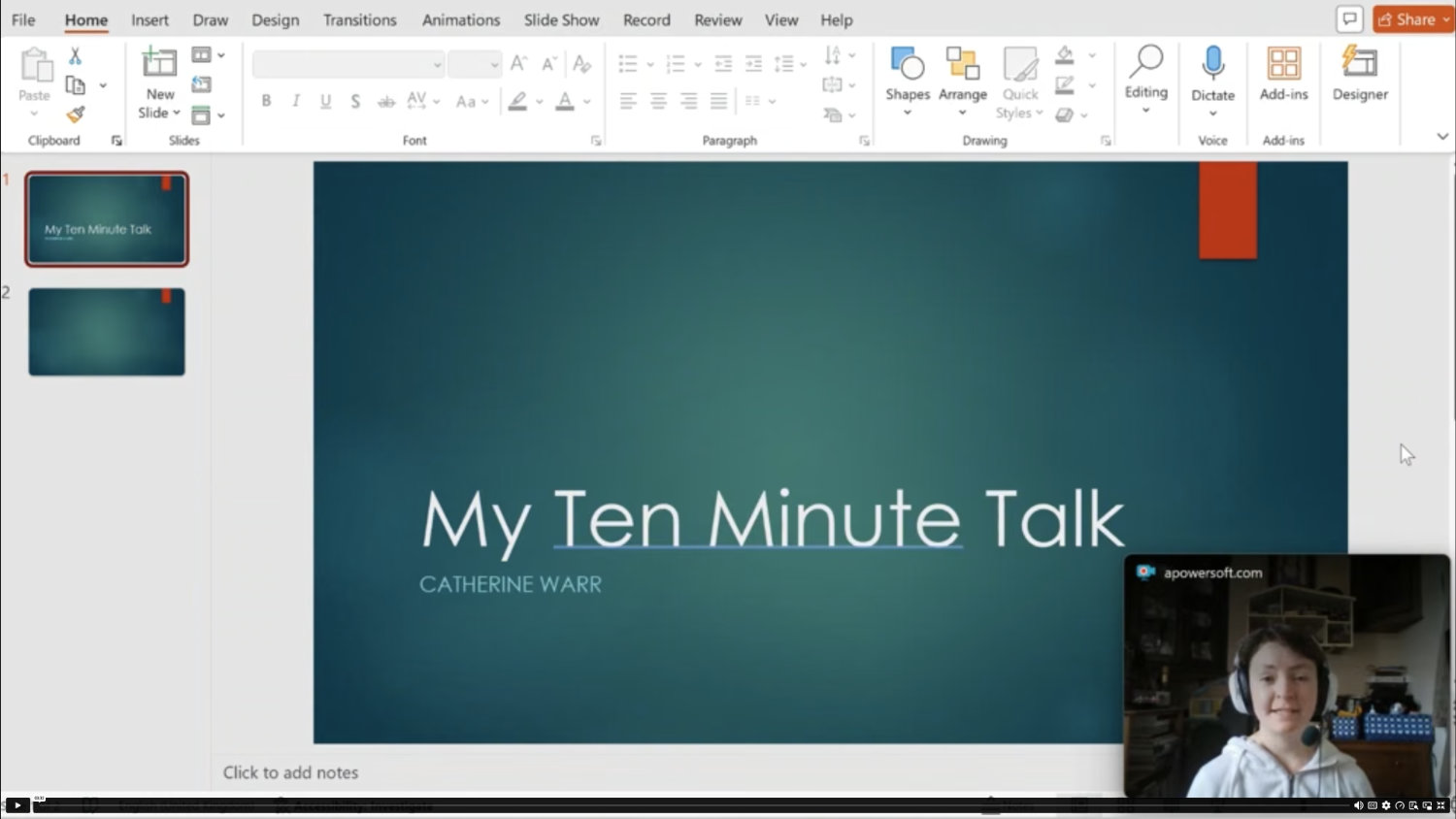
- Create your PowerPoint Presentation, as you would if giving a talk in person
- Make sure your recording equipment is turned on!
- Optional: if you would like to record yourself on video, head to the main navigation taskbar and click Record and then Cameo on the left-hand side. This will bring up the options for recording through your webcam and inserting the video into the presentation.
- When you are ready to record, on the Record tab click Record from beginning on the left-hand side (next to Cameo). This will bring up the recording screen.
- Click the red button at the top to start recording.
- Present your talk as you would if you were giving it in person, speaking loudly and clear. Avoid recording in a room with lots of background noise, such as traffic or loud fans.
- When you have finished, press the red button again to stop recording.
- Click Export at the top (next to the recording taskbar). On the next screen click Export to video at the bottom of the page.
- Once your recording has exported as a video, check to see if you’re happy with how it has turned out.
- If you’re satisfied with your recording, transfer it to the Digital Team at digitalteam@balh.org.uk by using a free file transfer service, such as https://www.swisstransfer.com/en or https://wetransfer.com/
- Once we have received it and checked it through, it will be uploaded to the BALH YouTube channel and shared on the website and social media.
View our video instructions